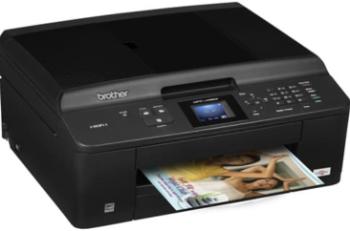
Canon PIXMA E480 printer model is a multifunction machine that can print, copy, scan, and fax documents with excellent performance. It has an operation panel that displays the condition or status of the device through an LCD screen. An Automatic Document Feeder (ADF) can hold up to 20 sheets of letter or A4 paper. However, this ADF component can hold up to 20 sheets of legal sized documents.
Canon PIXMA E480 driver Downloads for Windows 32-bit – 64-bit and macOS..
Supported Ink Catridges
Ink Catridge PG-47 Pigment Black, Colors Cyan, Yellow, Magenta Ink Catridges CL-57
Canon PIXMA E480 driver Supported Windows Operating Systems
| Supported OS: Windows 10 32-bit, Windows 10 64-bit, Windows 8.1 32-bit, Windows 8.1 64-bit, Windows 8 32-bit, Windows 8 64-bit, Windows 7 32-bit, Windows 7 64-bit, Windows Vista 32-bit, Windows Vista 64-bit, Windows XP 32-bit, Windows XP 64-bit | |||
| Filename | Size | ||
| Full Driver and Software Package for Windows.exe | 49.94 MB | Download | |
| MP Drivers for Windows.exe | 32.30 MB | Download | |
| My Printer trouble-shooting application for Windows.exe | 5.55 MB | Download | |
| XPS Printer Driver for Windows Vista 7 8 8.1 10.exe | 17.95 MB | Download | |
| Easy-PhotoPrint EX for Windows.exe | 57.57 MB | Download | |
| Easy-WebPrint EX for Windows.exe | 15.21 MB | Download | |
Canon PIXMA E480 driver Supported Mac OS.
| Supported OS: Mac OS Catalina 10.15.x, macOS Mojave 10.14.x, macOS High Sierra 10.13.x, macOS Sierra 10.12.x, Mac OS X El Capitan 10.11.x, Mac OS X Yosemite 10.10.x, Mac OS X Mavericks 10.9.x, Mac OS X Mountain Lion 10.8.x, Mac OS X Lion 10.7.x | |||
| Filename | Size | ||
| Full Driver and Software Package for MAC OS X 10.7 to 10.13.dmg | 14.88 MB | Download | |
| CUPS Printer Driver for MAC OS X 10.7 to 10.15.dmg | 14.38 MB | Download | |
| ICA Driver for MAC OS X 10.7 to 10.15.dmg | 1.71 MB | Download | |
| Easy-PhotoPrint EX for MAC OS X 10.7 to 10.13.dmg | 102.11 MB | Download | |
Canon PIXMA E480 driver Supported Linux Operating Systems
Linux (32-bit), Linux (64-bit)
| Supported OS: Debian os, SUSE Linux os, Linux Mint os, Boss os, Red Hat Enterprise Linux os, cent os, Fedora os, Ubuntu os | |||
| Filename | Size | ||
| IJ Printer Driver for Linux – Source file.tar.gz | 394.53 kB | Download | |
| IJ Printer Driver for Linux – debian Packagearchive.tar.gz | 514.68 kB | Download | |
| IJ Printer Driver for Linux – rpm Packagearchive.tar.gz | 269.44 kB | Download | |
| ScanGear MP for Linux – debian Packagearchive.tar.gz | 236.17 kB | Download | |
| ScanGear MP for Linux – rpm Packagearchive.tar.gz | 212.90 kB | Download | |
| ScanGear MP for Linux – Source file.tar.gz | 203.91 kB | Download | |
Specifications
Connecting with this machine can only be possible through the USB hi-speed 2.0 port. Besides, this device supports several mobile printing options, including Apple AirPrint, Google Cloud Print, and PIXMA Cloud Link. Simultaneously, the other features include the use of PIXMA Printing Solutions and Access Point Mode. Concerning the power usage, the machine depends on the current print mode to determine power consumption.
For instance, when the printer is ‘off,’ the power usage is only about 0.3 watts. Simultaneously, the standby mode uses only about 0.9 watts while maintaining a connection to the PC through USB. But during the copying or printing process, the power consumption is up to 7 watts. This machine can produce up to 1000 pages per month while working on an A4 paper. Similarly, the printer width is up to 435 mm, while the depth is up to 295 mm.
The printer has a height of 189 mm while the weight is up to 5.9 kg, while other factors remain constant. It uses protocol options such as the TCP/IP with different network types such as IEEE 802.11b/g/n. It also runs on a frequency band with a speed of up to 2.4 GHz with up to 13 channels. Simultaneously, the machine permits an indoor length of 50 m, depending on the transmission speed and conditions. Download Canon PIXMA E480 driver from Canon Website
[Installation Instructions] How to Download / Installation procedure
Note: Do not connect the USB cable until requested by the installer. If you connect to the network, make sure the network cable is connected before running the installer
Windows
- Close all software programs running on your computer.
- Turn on the printer.
- Click the Download button on this page.
- Click the downloaded file. The files will be extracted and the installation process will automatically begin.
- Follow the instructions on the screen to continue and complete the installation.
Mac
- Download the file. For the location where the file is saved, check the computer settings.
- Double-click the downloaded file and mount it on the Disk Image.
- Then Double-click the mounted Disk Image.
- Double-click the packaged file in the folder. Installation starts automatically.
To install later, select Save in step 4 and choose a location on your hard disk. When ready to install, search and double-click the file. This will automatically extract and start the installation process. Follow the instructions on the screen to continue the installation.
if there is a link error please report to us via the Contact. Thank you for your participation in downloading the latest printer drivers download for your Printer so that your driver and software are always updated.