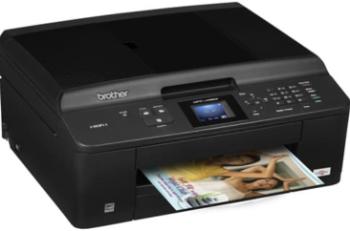
The Canon PIXMA TS5051 model is a multifunction printer capable of printing, copying, scanning, and using the wireless component. Under scanning, the device comprises a contact image sensor (CIS) flatbed for both photo and document scanning process. This process produces a maximum optical resolution of up to 1200 x 2400 dots per inch (dpi). Then, scanning on an A4 paper size is approximately 19 seconds per page.
Canon PIXMA TS5051 driver Downloads for Windows 32-bit – 64-bit and macOS..
Ink Catridge Details
Ink Catridge Pigment Black PGI-570PGBK, CLI-571BK Ink Catridge Black, Ink Catridge Yellow CLI-571Y, Cyan Ink Catridge CLI-571C, Ink Catridge Magenta CLI-571M
Canon PIXMA TS5051 driver Supported Windows Operating Systems
| Supported OS: Windows 10 32-bit, Windows 10 64-bit, Windows 8.1 32-bit, Windows 8.1 64-bit, Windows 8 32-bit, Windows 8 64-bit, Windows 7 32-bit, Windows 7 64-bit, Windows Vista 32-bit, Windows Vista 64-bit | |||
| Filename | Size | ||
| Full Driver and Software Package for Windows Vista 7 8 8.1 and 10.exe | 16.35 MB | Download | |
| MP Drivers for Windows Vista 7 8 8.1 and 10.exe | 69.39 MB | Download | |
| XPS Printer Driver for Windows Vista 7 8 8.1 and 10.exe | 21.78 MB | Download | |
Canon PIXMA TS5051 driver Supported Mac OS.
| Supported OS: Mac OS Catalina 10.15.x, macOS Mojave 10.14.x, macOS High Sierra 10.13.x, macOS Sierra 10.12.x, Mac OS X El Capitan 10.11.x, Mac OS X Yosemite 10.10.x, Mac OS X Mavericks 10.9.x, Mac OS X Mountain Lion 10.8.x | |||
| Filename | Size | ||
| CUPS Printer Driver for MAC OS X 10.8 to 10.15.dmg | 16.56 MB | Download | |
| Full Driver and Software Package for MAC OS X 10.10 to 10.14.dmg | 10.40 MB | Download | |
| Full Driver and Software Package for MAC OS X 10.8 and 10.9.dmg | 8.91 MB | Download | |
| ICA Driver for MAC OS X 10.8 to 10.15.dmg | 2.39 MB | Download | |
Canon PIXMA TS5051 driver Supported Linux Operating Systems
Linux (32-bit), Linux (64-bit)
| Supported OS: Debian os, SUSE Linux os, Linux Mint os, Boss os, Red Hat Enterprise Linux os, cent os, Fedora os, Ubuntu os | |||
| Filename | Size | ||
| IJ Printer Driver for Linux – debian Packagearchive.tar.gz | 1.06 MB | Download | |
| IJ Printer Driver for Linux – rpm Packagearchive.tar.gz | 460.92 kB | Download | |
| IJ Printer Driver for Linux – Source file.tar.gz | 798.14 kB | Download | |
| ScanGear MP for Linux – debian Packagearchive.tar.gz | 372.11 kB | Download | |
| ScanGear MP for Linux – rpm Packagearchive.tar.gz | 326.03 kB | Download | |
| ScanGear MP for Linux – Source file.tar.gz | 343.41 kB | Download | |
Specifications
Scanning depth for input/output mode is about 48bit/24bit for color scanning at the best performance. On the flip side, the greyscale intensity is 16bit/8bit for the same status to produce the best quality performance. Its maximum document size supports 216 x 297 mm. While copying, the copy out time is about 20 seconds for the first page. However, the subsequent page for continuous reproduction is about 6.0 ipm.
The multiple copy feature of this device is also up to 99 copies at a maximum productivity level. Besides, other functions concerning this copying include borderless print, photocopying, 2-on-1 reproduction, and document copying. The printer can also zoom in and out of the document to reach 400% and 25%. But this zoom changes occur in 1% gradual increments and is compatible with the standard sizes. Apart from the standard sizes, it can also work with specific custom-made sizes for printing or copying.
The display component of the machine is up to 7.5 cm in diagonal size of a liquid crystal display (LCD). It also supports various display languages including English, French, German, Italian, Portuguese, Indonesian, Korean, Estonian, Spanish, Norwegian, Swedish and Lithuanian. The connection to the machine is through the hi-speed USB 2.0 port, WiFi IEEE802.11 b/g/n, WiFi security with administration password. Amazingly, this machine supports the use of mobile printing features of different forms. Download Canon PIXMA TS5051 Printer driver from Canon Website
[Installation Instructions] How to Download / Installation procedure
Note: Do not connect the USB cable until requested by the installer. If you connect to the network, make sure the network cable is connected before running the installer
Windows
- Close all software programs running on your computer.
- Turn on the printer.
- Click the Download button on this page.
- Click the downloaded file. The files will be extracted and the installation process will automatically begin.
- Follow the instructions on the screen to continue and complete the installation.
Mac
- Download the file. For the location where the file is saved, check the computer settings.
- Double-click the downloaded file and mount it on the Disk Image.
- Then Double-click the mounted Disk Image.
- Double-click the packaged file in the folder. Installation starts automatically.
To install later, select Save in step 4 and choose a location on your hard disk. When ready to install, search and double-click the file. This will automatically extract and start the installation process. Follow the instructions on the screen to continue the installation.
if there is a link error please report to us via the Contact. Thank you for your participation in downloading the latest printer drivers download for your Printer so that your driver and software are always updated.