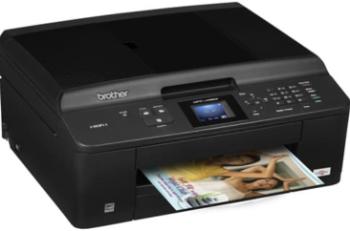
Canon imageCLASS MF9340C model device is a multifunction printer with the ability to print, copy, scan, and fax messages. The machine uses the laser print technology the ensures there is optimum use of print resources. When printing in black, the standard print resolution is about 600 x 600 dots per inch (dpi). Also, print speed is up to 21 pages per minute (ppm) while the optimum resolution is intact for photos.
Canon imageCLASS MF9340C driver Supported Windows Operating Systems
| Supported OS: Windows 10 32-bit, Windows 10 64-bit, Windows 8.1 32-bit, Windows 8.1 64-bit, Windows 8 32-bit, Windows 8 64-bit, Windows 7 32-bit, Windows 7 64-bit, Windows Vista 32-bit, Windows Vista 64-bit, Windows XP 32-bit, Windows XP 64-bit | |||
| Filename | Size | ||
| UFR II-UFRII LT XPS Driver for Windows.exe | 30.79 MB | Download | |
| Color Network ScanGear Driver for Windows.exe | 17.46 MB | Download | |
| PCL5e-5c-6 Driver for Windows 32 bit.exe | 43.84 MB | Download | |
| PCL5e-5c-6 Driver for Windows 64 bit.exe | 48.09 MB | Download | |
| FAX Driver for Windows 32 bit.exe | 17.82 MB | Download | |
| FAX Driver for Windows 64 bit.exe | 20.67 MB | Download | |
| PCL6 Driver for Windows 32 bit.exe | 23.75 MB | Download | |
| PCL6 Driver for Windows 64 bit.exe | 26.43 MB | Download | |
| UFR II Driver for Windows 32 bit.exe | 23.88 MB | Download | |
| UFR II Driver for Windows 64 bit.exe | 26.74 MB | Download | |
Canon imageCLASS MF9340C driver Supported Mac OS.
| Supported OS: macOS High Sierra 10.13.x, macOS Sierra 10.12.x, Mac OS X El Capitan 10.11.x, Mac OS X Yosemite 10.10.x, Mac OS X Mavericks 10.9.x, Mac OS X Mountain Lion 10.8.x, Mac OS X Lion 10.7.x, Mac OS X Snow Leopard 10.6.x, Mac OS X Leopard 10.5.x | |||
| Filename | Size | ||
| UFR II-UFRII LT Driver for MAC Operating System.dmg | 84.12 MB | Download | |
| FAX Driver for MAC Operating System.dmg | 39.64 MB | Download | |
Specifications
The printer has an internal memory of 768 MB with no need for extra memory for the device. Furthermore, in terms of the copier features, the machine runs at a speed of 21 ppm as well. Also, it can reduce the output copy dimension up to 50% of the original size. While on the other hand, the enlargement level is up to 200% of the original size. On the other end, it has no halftone depth, while the copying technology is digital.
Under the scanning specifications, the supported formats include TIFF, JPEG, PDF, and short PDF. Scanning resolution is about 600 x 600 by standard quality, while the method is CCD technology. It also supports a text-enhanced technology to improve on the final output quality. Furthermore, this model of printer has an optical character recognition that further enhances its output.
In terms of the faxing component of the printer, the running modem speed is 33.3 kbps. Whereas, the transmission speed for the documents in the process is about 3 seconds for each page. The machine supports the use of A4 paper with an automatic document feeder that holds up to 50 sheets. In the main input paper tray, the paper loading capacity is up to 250 sheets of plain paper. On the other hand, the output tray will hold about 250 sheets of printed pages of writing. Download Canon imageCLASS MF9340C printer driver from Canon Website
[Installation Instructions] How to Download / Installation procedure
Note: Do not connect the USB cable until requested by the installer. If you connect to the network, make sure the network cable is connected before running the installer
Windows
- Close all software programs running on your computer.
- Turn on the printer.
- Click the Download button on this page.
- Click the downloaded file. The files will be extracted and the installation process will automatically begin.
- Follow the instructions on the screen to continue and complete the installation.
Mac
- Download the file. For the location where the file is saved, check the computer settings.
- Double-click the downloaded file and mount it on the Disk Image.
- Then Double-click the mounted Disk Image.
- Double-click the packaged file in the folder. Installation starts automatically.
To install later, select Save in step 4 and choose a location on your hard disk. When ready to install, search and double-click the file. This will automatically extract and start the installation process. Follow the instructions on the screen to continue the installation.
if there is a link error please report to us via the Contact. Thank you for your participation in downloading the latest printer drivers download for your Printer so that your driver and software are always updated.