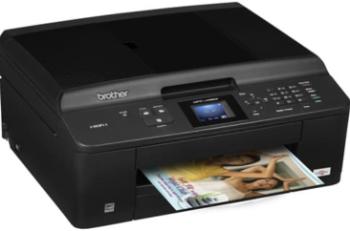
The Canon i-SENSYS LBP6030 printer model is a monochrome device that can print on a maximum paper size of A4. It runs with the monochrome laser beam print technology with an average print speed of 18 pages per minute (ppm). The average print resolution is about 600 x 600 dots per inch (dpi).
Canon i-SENSYS LBP 6030 driver Downloads for Windows 32-bit – 64-bit and macOS..
Toner Cartridge Details
Black 725 Toner Cartridge – Upto 1600 Pages
Canon i-SENSYS LBP6030 driver Supported Windows Operating Systems
| Supported OS: Windows 10 32-bit, Windows 10 64-bit, Windows 8.1 32-bit, Windows 8.1 64-bit, Windows 8 32-bit, Windows 8 64-bit, Windows 7 32-bit, Windows 7 64-bit, Windows Vista 32-bit, Windows Vista 64-bit, Windows XP 32-bit, Windows XP 64-bit | |||
| Filename | Size | ||
| UFRII LT Printer Driver for Windows 32 bit.exe | 18.07 MB | Download | |
| UFRII LT Printer Driver for Windows 64 bit.exe | 20.89 MB | Download | |
| UFRII LT XPS Printer Driver for Windows Vista 7 8 8.1 and 10.exe | 29.16 MB | Download | |
Canon i-SENSYS LBP6030 driver Supported Mac OS.
| Supported OS: Mac OS Catalina 10.15.x, Mac OS Mojave 10.14.x, macOS High Sierra 10.13.x, macOS Sierra 10.12.x, Mac OS X El Capitan 10.11.x, Mac OS X Yosemite 10.10.x, Mac OS X Mavericks 10.9.x, Mac OS X Mountain Lion 10.8.x, Mac OS X Lion 10.7.x, Mac OS X Snow Leopard 10.6.x | |||
| Filename | Size | ||
| UFRII LT Printer Driver for Mac OS X 10.9 to 10.15.dmg | 31.29 MB | Download | |
| UFRII LT Printer Driver for Mac OS X 10.8.dmg | 31.59 MB | Download | |
| UFRII LT Printer Driver for Mac OS X 10.7.dmg | 31.54 MB | Download | |
| UFRII LT Printer Driver for Mac OS X 10.6.dmg | 42.33 MB | Download | |
Canon i-SENSYS LBP6030 driver Supported Linux Operating Systems
Linux (32-bit), Linux (64-bit)
| Supported OS: Debian os, SUSE Linux os, Linux Mint os, Boss os, Red Hat Enterprise Linux os, cent os, Fedora os, Ubuntu os | |||
| Filename | Size | ||
| UFRII LT Printer Driver for Linux.tar.gz | 20.88 MB | Download | |
Specifications
The maximum print quality resolution reaches up to 2400 x 600 dpi with an automatic image refinement.
Simultaneously, this machine has an approximate warm-up time of 1 second from the sleep mode. Simultaneously, the power on the way supports a range of 10 seconds or less under normal circumstances. Similarly, this device has a first page output time of about 7.8 seconds or less. However, the maximum duty cycle of the machine is up to 5000 pages in a month. The device also supports a print margin of 5 mm on all four sides of the paper.
Furthermore, the standard paper input tray has a capacity of up to 150 sheets of plain paper through the multipurpose tray. On the other hand, it has an output tray capacity of up to 100 sheets of printed paper in a face-down fashion. The supported media types include plain paper, heavy paper, transparent films, labels, and envelopes. However, the compatible sizes include the A4, B5, A5, letter, legal, 16K, and some custom sizes.
Concerning the media weight, the multipurpose tray supports a range between 60 and 163 gsm. Simultaneously, the power requirements include a voltage range between 220 and 240 volts at 50/60 Hz frequency. The maximum power consumption is up to 870 watts or less, while the active mode is 330 watts. Also, the standby mode consumes about 1.8 watts or less, and the sleep mode requires 0.8 watts for the best performance. Download Canon i-SENSYS LBP6030 driver from Canon Website
[Installation Instructions] How to Download / Installation procedure
Note: Do not connect the USB cable until requested by the installer. If you connect to the network, make sure the network cable is connected before running the installer
Windows
- Close all software programs running on your computer.
- Turn on the printer.
- Click the Download button on this page.
- Click the downloaded file. The files will be extracted and the installation process will automatically begin.
- Follow the instructions on the screen to continue and complete the installation.
Mac
- Download the file. For the location where the file is saved, check the computer settings.
- Double-click the downloaded file and mount it on the Disk Image.
- Then Double-click the mounted Disk Image.
- Double-click the packaged file in the folder. Installation starts automatically.
To install later, select Save in step 4 and choose a location on your hard disk. When ready to install, search and double-click the file. This will automatically extract and start the installation process. Follow the instructions on the screen to continue the installation.
if there is a link error please report to us via the Contact. Thank you for your participation in downloading the latest printer drivers download for your Printer so that your driver and software are always updated.