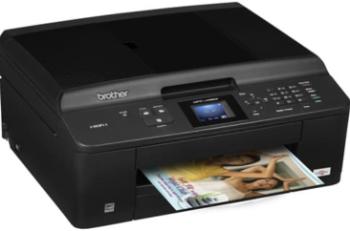
Another exceptional member of the MAXIFY series is the Canon MAXIFY iB4070 printer model with its unique features with quality. It can produce a maximum print quality of up to 600 (horizontal) x 1200 (vertical) dots per inch (dpi). The user interface options include the USB 2.0 hi-speed port and Wired LAN using a 10/100Base-T component. Another option is the wireless LAN that comprises of the IEEE 802.11 b/g/n components.
Canon MAXIFY iB4070 driver Downloads for Windows 32-bit – 64-bit and macOS..
Supported Ink Catridges
Black Ink Catridge PGI-2700, Ink Catridge Cyan PGI-2700, Ink Catridge PGI-2700 Magenta, PGI-2700 Ink Catridge Yellow
Canon MAXIFY iB4070 driver Supported Windows Operating Systems
| Supported OS: Windows 10 32-bit, Windows 10 64-bit, Windows 8.1 32-bit, Windows 8.1 64-bit, Windows 8 32-bit, Windows 8 64-bit, Windows 7 32-bit, Windows 7 64-bit, Windows Vista 32-bit, Windows Vista 64-bit, Windows XP 32-bit, Windows XP 64-bit | |||
| Filename | Size | ||
| Full Driver and Software Package for Windows.exe | 49.78 MB | Download | |
| Printer Driver for Windows.exe | 15.48 MB | Download | |
| My Printer trouble-shooting application for Windows.exe | 5.55 MB | Download | |
| XPS Printer Driver for Windows Vista 7 8 8.1 10.exe | 17.96 MB | Download | |
| Easy-WebPrint EX for Windows.exe | 15.21 MB | Download | |
Canon MAXIFY iB4070 driver Supported Mac OS.
| Supported OS: Mac OS Catalina 10.15.x, macOS Mojave 10.14.x, macOS High Sierra 10.13.x, macOS Sierra 10.12.x, Mac OS X El Capitan 10.11.x, Mac OS X Yosemite 10.10.x, Mac OS X Mavericks 10.9.x, Mac OS X Mountain Lion 10.8.x, Mac OS X Lion 10.7.x, Mac OS X Snow Leopard 10.6.x | |||
| Filename | Size | ||
| Full Driver and Software Package for MAC OS X 10.6 to 10.11.dmg | 12.43 MB | Download | |
| CUPS Printer Driver for MAC OS X 10.7 to 10.15.dmg | 14.79 MB | Download | |
| CUPS Printer Driver for MAC OS X 10.6.dmg | 15.58 MB | Download | |
Canon MAXIFY iB4070 driver Supported Linux Operating Systems
Linux (32-bit), Linux (64-bit)
| Supported OS: Debian os, SUSE Linux os, Linux Mint os, Boss os, Red Hat Enterprise Linux os, cent os, Fedora os, Ubuntu os | |||
| Filename | Size | ||
| IJ Printer Driver for Linux – debian Packagearchive.tar.gz | 474.40 kB | Download | |
| IJ Printer Driver for Linux – rpm Packagearchive.tar.gz | 261.86 kB | Download | |
| IJ Printer Driver for Linux – Source file.tar.gz | 376.15 kB | Download | |
Specifications
Setting up this machine could be through the Wi-Fi Protected Setup (WPS), Windows Connect Now (WCN), or the Cableless setup. Users should bear in mind that both the USB and the LAN options are usable simultaneously. However, users can not make use of the wireless LAN and the wired LAN options simultaneously. This machine can use a power voltage range between 100-240 volts at 50/60 Hz as a print-only device.
On the other hand, the printer power consumption is a factor in the printer present working model. For instance, when printing or copying, the power usage is about 27 watts while the ‘off’ mode uses 0.3 watts. But when on the standby mode, the power consumption is about 1.0 watts at the very minimum level. In any case, the waiting period for the standby mode is not changeable for this particular model of printer.
This machine also has a width of up to 18.3inches, a depth of 15.5 inches, and a height of 11.5inches. It has a weight of up to 21.5 lbs, which implies an approximate weight of 9.8 kg. The pressure indicates the presence of the installed print heads and ink tanks. At the same time, the total number of nozzles for the ink tanks is about 4352. This number contains about 1280 nozzles for black pigment print and 512 nozzles each for others. Download Canon MAXIFY iB4070 driver from Canon Website
[Installation Instructions] How to Download / Installation procedure
Note: Do not connect the USB cable until requested by the installer. If you connect to the network, make sure the network cable is connected before running the installer
Windows
- Close all software programs running on your computer.
- Turn on the printer.
- Click the Download button on this page.
- Click the downloaded file. The files will be extracted and the installation process will automatically begin.
- Follow the instructions on the screen to continue and complete the installation.
Mac
- Download the file. For the location where the file is saved, check the computer settings.
- Double-click the downloaded file and mount it on the Disk Image.
- Then Double-click the mounted Disk Image.
- Double-click the packaged file in the folder. Installation starts automatically.
To install later, select Save in step 4 and choose a location on your hard disk. When ready to install, search and double-click the file. This will automatically extract and start the installation process. Follow the instructions on the screen to continue the installation.
if there is a link error please report to us via the Contact. Thank you for your participation in downloading the latest printer drivers download for your Printer so that your driver and software are always updated.