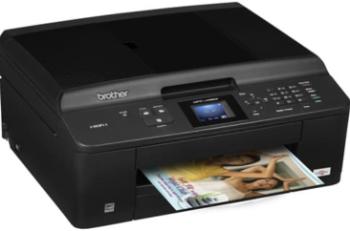
Canon PIXMA MX515 printer model has a height of 200 mm, a depth of 385mm, and a width of 458mm. It has an automatic document feeder (ADF), which can take up to 30 pages of plain paper. This ADF content is in addition to the main tray’s main supply, which can be up to 150sheets. In a typical environment, the machine demands a range of 5 and 350C. Also, the relative humidity is about 10 to 90% with no dew condensation.
Canon PIXMA MX515 driver Downloads for Windows 32-bit – 64-bit and macOS..
Canon PIXMA MX515 driver Supported Windows Operating Systems
| Supported OS: Windows 10 32-bit, Windows 10 64-bit, Windows 8.1 32-bit, Windows 8.1 64-bit, Windows 8 32-bit, Windows 8 64-bit, Windows 7 32-bit, Windows 7 64-bit, Windows Vista 32-bit, Windows Vista 64-bit, Windows XP 32-bit, Windows XP 64-bit | |||
| Filename | Size | ||
| MP Driver for Windows.exe | 28.49 MB | Download | |
| XPS Printer Driver for Windows Vista 7 8 8.1 10.exe | 22.18 MB | Download | |
| Mini Master Setup for Windows XP Vista 7 8 8.1.exe | 35.85 MB | Download | |
Canon PIXMA MX515 driver Supported Mac OS.
| Supported OS: macOS High Sierra 10.13.x, macOS Sierra 10.12.x, Mac OS X El Capitan 10.11.x, Mac OS X Yosemite 10.10.x, Mac OS X Mavericks 10.9.x, Mac OS X Mountain Lion 10.8.x, Mac OS X Lion 10.7.x, Mac OS X Snow Leopard 10.6.x, Mac OS X Leopard 10.5.x | |||
| Filename | Size | ||
| CUPS Printer Driver for MAC OS X 10.7 to 10.13.dmg | 14.06 MB | Download | |
| CUPS Printer Driver for MAC OS X 10.5 and 10.6.dmg | 16.55 MB | Download | |
| Scanner Driver for MAC OS X 10.5 to 10.13.dmg | 12.87 MB | Download | |
| ICA Driver for MAC OS X 10.7 to 10.13.dmg | 7.05 MB | Download | |
| ICA Driver for MAC OS X 10.6.dmg | 8.60 MB | Download | |
| Mini Master Setup for MAC OS X 10.5 to 10.8.dmg | 46.65 MB | Download | |
Canon PIXMA MX515 driver Supported Linux Operating Systems
Linux (32-bit), Linux (64-bit)
| Supported OS: Debian os, SUSE Linux os, Linux Mint os, Boss os, Red Hat Enterprise Linux os, cent os, Fedora os, Ubuntu os | |||
| Filename | Size | ||
| IJ Printer Driver for Linux – debian Packagearchive.tar.gz | 3.44 MB | Download | |
| IJ Printer Driver for Linux – rpm Packagearchive.tar.gz | 3.58 MB | Download | |
| IJ Printer Driver for Linux – Source file.tar.gz | 8.09 MB | Download | |
| ScanGear MP for Linux – debian Packagearchive.tar.gz | 1.29 MB | Download | |
| ScanGear MP for Linux – rpm Packagearchive.tar.gz | 1.32 MB | Download | |
| ScanGear MP for Linux – Source file.tar.gz | 3.42 MB | Download | |
Specifications
The acoustic noise levels of the machine are approximately 42 dB (A) according to the ISO/JIS-SCID N2 printing standard pattern. Also, the device has a net weight, which is about 8.8 kg. Power source supports an internal power supply between 100 and 240 volts and a frequency of 50/60 Hz. The consumption of power depends on the present model of the system. For instance, the standby mode uses about 1.7 watts with a Wi-Fi connection to PC and scanner off.
Copying or printing uses a maximum power of about 18 watts, which is the maximum power consumption. The display component of the machine comprises a color TFT screen with a 6.2 cm diagonal size. In terms of the interface, the options include a hi-speed USB 2.0 B port and Ethernet IEEE802.3u (100Base-TX). It can also connect through Bluetooth v2.0 at a maximum of 1.44 Mbps, an optional feature.
The user interface options include Wi-Fi, Android device, iPhone, iPod touch, iPad, Apple AirPrint, and Sony PlayStation 3. It supports operating system versions such as Windows 7, Vista, XP, with compatible internet browsers. Apart from Windows OS, it also supports Mac OS X Lion 10.7, 10.6, 10.5.8, with a maximum display of 1024×768. Some of the included software is Canon MP Navigator EX, Canon Easy-PhotoPrint EX, Canon Solution Menu EX. Download Canon PIXMA MX515 Printer driver from Canon Website
[Installation Instructions] How to Download / Installation procedure
Note: Do not connect the USB cable until requested by the installer. If you connect to the network, make sure the network cable is connected before running the installer
Windows
- Close all software programs running on your computer.
- Turn on the printer.
- Click the Download button on this page.
- Click the downloaded file. The files will be extracted and the installation process will automatically begin.
- Follow the instructions on the screen to continue and complete the installation.
Mac
- Download the file. For the location where the file is saved, check the computer settings.
- Double-click the downloaded file and mount it on the Disk Image.
- Then Double-click the mounted Disk Image.
- Double-click the packaged file in the folder. Installation starts automatically.
To install later, select Save in step 4 and choose a location on your hard disk. When ready to install, search and double-click the file. This will automatically extract and start the installation process. Follow the instructions on the screen to continue the installation.
if there is a link error please report to us via the Contact. Thank you for your participation in downloading the latest printer drivers download for your Printer so that your driver and software are always updated.