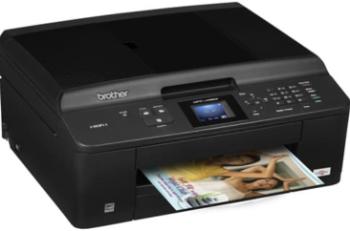
Similar to all the other printers of this series, the HP Deskjet 3512 is also an All-in-One printer. The fantastic features and light weight makes it even easier to use. It designed for home purposes. It can easily print, scan and copy the documents in your everyday life. This printer series is also termed as e-printer because it offers wireless connectivity along with USB support.
HP Deskjet 3512 driver Supported Windows Operating Systems
| Supported OS: Windows 10 32-bit, Windows 10 64-bit, Windows 8.1 32-bit, Windows 8.1 64-bit, Windows 8 32-bit, Windows 8 64-bit, Windows 7 32-bit, Windows 7 64-bit, Windows Vista 32-bit, Windows Vista 64-bit, Windows XP 32-bit | |||
| Filename | Size | ||
| Full Feature Drivers and Software for Windows.exe | 65.63 MB | Download | |
| Basic Driver for windows XP Vista 7 8 8.1 and 10 32 bit.exe | 24.51 MB | Download | |
| Basic Driver for windows Vista 7 8 8.1 and 10 64 bit.exe | 26.31 MB | Download | |
HP Deskjet 3512 driver Supported Mac Operating Systems
| Supported OS: macOS Big Sur 11.x, Mac OS Catalina 10.15.x, Mac OS Mojave 10.14.x, macOS High Sierra 10.13.x, macOS Sierra 10.12.x, Mac OS X El Capitan 10.11.x, Mac OS X Yosemite 10.10.x, Mac OS X Mavericks 10.9.x, Mac OS X Lion 10.7.x, Mac OS X Snow Leopard 10.6.x | |||
| Filename | Size | ||
| HP Easy Start for Mac OS X 10.9 to 10.15 and 11.x.zip | 9.06 MB | Download | |
| Full Feature Drivers and Software for Mac OS X 10.9.dmg | 110.05 MB | Download | |
| Full Feature Drivers and Software for Mac OS X 10.6 and 10.7.dmg | 147.88 MB | Download | |
HP Deskjet 3512 cartridges
HP 61 Black Ink Cartridge (~190 pages ), HP 61 Tri-color Ink Cartridge (~165 pages )
Latest Operating System Compatibility with HP Deskjet 3512 driver:
The HP Deskjet 3512 printer is compatible with the latest version of Windows and Mac operating system. It supports Windows 8, 8.1, and 10 entirely. The latest version of Mac OS X High Sierra is also compatible with this printer.
Specifications:
Operating system specifications for HP Deskjet 3512 driver:
As the HP Deskjet 3512 driver supports both Mac and Windows OS, both of them have a different recommendation for the use of this printer. The minimum operating system recommendation includes the use of 1GHz 32 or 64-bit processor with minimum 512 MB of RAM. The free disk space required for efficient working of the printer is 2GB. The minimum requirement for Mac includes Mac OS X Mountain Lion, OS X Lion, and Mac OS X v10.6.
Printing, Copying and Scanning Specifications:
The printing speed of the printer is up to 7.5 ppm for black paper and 4.5 ppm for color paper. The copying speed varies from 4.5 ppm to 2.5 ppm for black and color paper respectively. The HP Deskjet 3512 printer can also scan up to 1200 x 1200 resolutions with 24-bit color and 8-bit grayscale.
Environmental Specifications:
The HP Deskjet 3512 printer can operate under the temperature range of 15-32ᵒC or 59ᵒF to 90ᵒF and non condensing 15 to 80% humidity range. It is recommended to keep the printer in an area where the temperature ranges from -40ᵒF to 140ᵒF when it is in a non-operating condition.
Features:
1. It has an Energy Star Rating.
2. The printer can support mobile printing capability.
3. It uses the drop on demand thermal Inkjet technology.
Download HP Deskjet 3512 e-All-in-One Printer driver from HP website
[Installation Instructions] How to Download / Installation procedure
Note: Do not connect the USB cable until requested by the installer. If you connect to the network, make sure the network cable is connected before running the installer
Windows
- Close all software programs running on your computer.
- Turn on the printer.
- Click the Download button on this page.
- Click the downloaded file. The files will be extracted and the installation process will automatically begin.
- Follow the instructions on the screen to continue and complete the installation.
Mac
- Download the file. For the location where the file is saved, check the computer settings.
- Double-click the downloaded file and mount it on the Disk Image.
- Then Double-click the mounted Disk Image.
- Double-click the packaged file in the folder. Installation starts automatically.
To install later, select Save in step 4 and choose a location on your hard disk. When ready to install, search and double-click the file. This will automatically extract and start the installation process. Follow the instructions on the screen to continue the installation.
if there is a link error please report to us via the Contact. Thank you for your participation in downloading the latest printer drivers download for your Printer so that your driver and software are always updated.