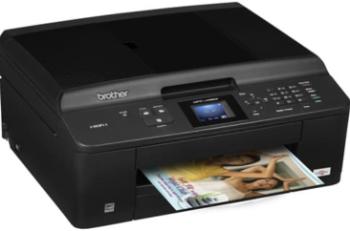
HP Officejet 7310xi cartridges
Black Original Ink HP 94 Cartridge (~ 480 pages), HP 96 Black Inkjet Print Cartridge (~860 pages), HP 95 Tri-color Inkjet Print Cartridge(~330 pages), HP 97 Tri-color Original Ink Cartridge(~560 pages), HP 99 Photo Original Ink Cartridge(~130 pages), HP 100 Gray Photo Original Ink Cartridge (~80 pages)
Supported Windows Operating Systems
| Supported OS: Windows 10 32-bit, Windows 10 64-bit, Windows 8.1 32-bit, Windows 8.1 64-bit, Windows 8 32-bit, Windows 8 64-bit, Windows 7 32-bit, Windows 7 64-bit, Windows Vista 32-bit, Windows Vista 64-bit, Windows XP 32-bit, Windows XP 64-bit | |||
| Filename | Size | ||
| Full Feature Drivers and Software for windows 8 8.1 and 10.exe | 327.94 MB | Download | |
| Full Feature Drivers and Software for windows 7.exe | 362.68 MB | Download | |
| Full Feature Drivers and Software for windows Vista.exe | 163.28 MB | Download | |
| Full Feature Drivers and Software for windows XP 32 bit.exe | 428.80 MB | Download | |
| Multi Function Products Driver for windows XP.exe | 68.69 MB | Download | |
| Basic Drivers and Software for windows XP 32 bit.exe | 59.54 MB | Download | |
HP Officejet 7310xi driver Supported Mac Operating Systems
| Supported OS: Mac OS X Snow Leopard 10.6.x, Mac OS X Leopard 10.5.x | |||
| Filename | Size | ||
| Full Feature Drivers and Software for Mac OS X 10.6.dmg | 145.63 MB | Download | |
| Full Feature Drivers and Software for Mac OS X 10.5.dmg | 191.37 MB | Download | |
HP Officejet 7310xi
The HP Officejet 7310xi is an all-in-one printer. This printer is compact and performs various functions such as print, scan, copy, and fax.
Print Specification:
The HP Officejet 7310xi printer is an all-in-one printer. With this printer, the user easily prints documents in both formats such as black or color. The printing speed of this printer is up to 20 ppm color printing and 30 ppm black printing. The black and white print resolution of HP Officejet 7310xi is up to 1200 x 1200 dpi print resolution. The printing resolution of color printing is 1200 x 1200 dpi with HP PhotoRET.
The minimum duty cycle of this printer is 500 printed pages per month and maximum of 5000 printed pages per month. The printing method of HP Officejet 7310xi is Drop-on-demand thermal inkjet printing method.
Scan Specification:
HP Officejet 7310 xi printer perform multifunction such as copy, print, scan, and fax. The scan resolution of pages is up to 2400 x 4800 dpi optical and 19200 dpi for enhanced. The printer using scan using the integrated OCR (optical character reader) interface to convert the text format.
The color of scan documents such as 48-bit color, 8-bit grayscale such as 256 levels of gray color. The maximum scan size from the glass is 216 x 355.6 mm. The ADF holds up to 50 pages. The scan speed varies according to the complexity of the document.
Copy Specification:
The HP Officejet 7310xi printer uses digital image processing for copy documents. The number of copies from the original is 99 copies and other according to model. With this printer, the digital zoom from 50 to 400 percentages. The copy speed is up to 30 copies per minute in black format and 20 copies per minute in color printing. There are various copy modes such as fit to page, Poster, and many others.
Fax Specification:
The HP Officejet 7310xi printer is an all-in-one printer. With this printer, the user smoothly performs multifunction such as fax, copy, scan, and print. The transmission speed of fax is 3 sec per page at 33.6 kbps, and other complex documents need to more extended time and more memory. The HP Officejet 7310xi use ring detects for automatic fax and answering machine switching.
Fax resolution using page memory up to 150 pages incoming fax memory based on ITU-T Test image #1 at standard resolution. The speed of fax dials up to 130-speed dials, and other varies by printer model. HP Officejet 7310xi driver is also compatible with manual multiple page fax, and automatic busy redial up to five times. The automatic no-answer redials up to five times, and another speed is varying on the printer model.
Connectivity:
The HP Officejet 7310xi printer supported connectivity connection is USB 2.0 interface, digital-camera memory slots, and optional Ethernet.
Power Specification:
The maximum power consumption is 75 w. This printer is also energy star printer and easily compatible with the environment. The input voltage is AC 100 to 240 volts -2A 50 -60 Hz, grounded.
Paper Handling Specification:
• Paper Tray Capacities: There are various types of paper such as plain paper, legal paper, cards, envelops labels, and many others. The input tray holds the 150 plain pages, 150 legal papers, 30 cards, 20 envelops and many other. The output tray gives 50 plain pages, 50 legal pages, 30 cards, ten envelops and many other.
• Paper Types: This printer using different types of paper with paper size such as paper, envelops, photo, labels, custom. For paper size such as letter: 216 x 279mm, legal: 216 x 356mm, A4: 210 X 297mm and many other.
• Print Margins: The print margin based on paper size such US letter, US legal (1.8 X 3mm), A4, A5, B5 (1.8 x 6.0 mm), Envelops (1.8×14.3 mm), cards (1.8×6.7mm) and many other.
Download HP Officejet 7310xi All-in-One Printer driver from Hp website.
[Installation Instructions] How to Download / Installation procedure
Note: Do not connect the USB cable until requested by the installer. If you connect to the network, make sure the network cable is connected before running the installer
Windows
- Close all software programs running on your computer.
- Turn on the printer.
- Click the Download button on this page.
- Click the downloaded file. The files will be extracted and the installation process will automatically begin.
- Follow the instructions on the screen to continue and complete the installation.
Mac
- Download the file. For the location where the file is saved, check the computer settings.
- Double-click the downloaded file and mount it on the Disk Image.
- Then Double-click the mounted Disk Image.
- Double-click the packaged file in the folder. Installation starts automatically.
To install later, select Save in step 4 and choose a location on your hard disk. When ready to install, search and double-click the file. This will automatically extract and start the installation process. Follow the instructions on the screen to continue the installation.
if there is a link error please report to us via the Contact. Thank you for your participation in downloading the latest printer drivers download for your Printer so that your driver and software are always updated.