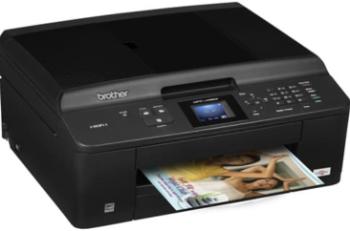
A robust machine by HP, this HP Officejet Enterprise Color Flow MFP X585z can perform with double the speed. The advance working mechanism of this printer improves its durability and makes it an efficient printer for all types of offices. The higher level security features allow confidential printing documents with ease. The 8-inch color touchscreen display gives full control to the user.
HP Officejet Enterprise Color Flow MFP X585z cartridges.
HP980 Black Officejet Ink Cartridge yield (~10000 pages ), HP 980 Cyan Original Ink Cartridge yield (~6600 pages ), HP 980 Magenta Original Ink Cartridge yield (~6600 pages ), HP 980 Yellow Original Ink Cartridge yield (~6600 pages )
There are some specific system requirements. It can work with the various operating system including Microsoft Windows, Macintosh, Linux, and UNIX. Within the Windows operating systems the version XP, Vista, 7, 8 and the latest Windows 10 support the printer. All these operating systems need a minimum of 200 MB of free disk space to install the firmware for the printer. The Macintosh users working with the Mac OS X 10.6 to the Mac OS X 10.8 should have 1 GB of empty storage space on the system. Added to these versions the printer is also compatible with the latest Mac OS X 10.14.
Supported Windows Operating Systems
| Supported OS: Windows 10 32-bit, Windows 10 64-bit, Windows 8.1 32-bit, Windows 8.1 64-bit, Windows 8 32-bit, Windows 8 64-bit, Windows 7 32-bit, Windows 7 64-bit, Windows Vista 32-bit, Windows Vista 64-bit, Windows XP 32-bit, Windows XP 64-bit | |||
| Filename | Size | ||
| Full Solution Drivers and Software for windows.exe | 108.43 MB | Download | |
| PCL6 Print Driver for windows.exe | 101.73 MB | Download | |
| PCL6 Print Driver – no Installer for windows.exe | 21.61 MB | Download | |
| HP PC Send Fax Driver for windows 32 bit.exe | 28.13 MB | Download | |
| HP PC Send Fax Driver for windows 64 bit.exe | 10.04 MB | Download | |
| MFP Network Twain Scan Package for windows 7 8 8.1 10.msi | 14.76 MB | Download | |
| PCL6 Universal Print Driver for Windows 7 8 8.1 10 32 bit.exe | 17.16 MB | Download | |
| PCL6 Universal Print Driver for Windows 7 8 8.1 10 64 bit.exe | 19.28 MB | Download | |
| PostScript Universal Print Driver for Windows 7 8 8.1 10 32 bit.exe | 18.38 MB | Download | |
| PostScript Universal Print Driver for Windows 7 8 8.1 10 64 bit.exe | 20.40 MB | Download | |
| USB connected PCL6 Universal Print Driver for Windows 7 8 8.1 10 32 bit.exe | 17.27 MB | Download | |
| USB connected PCL6 Universal Print Driver for Windows 7 8 8.1 10 64 bit.exe | 19.34 MB | Download | |
| USB connected PostScript Universal Print Driver for Windows 7 8 8.1 10 32 bit.exe | 18.48 MB | Download | |
| USB connected PostScript Universal Print Driver for Windows 7 8 8.1 10 64 bit.exe | 20.47 MB | Download | |
HP Officejet Enterprise Color Flow MFP X585z driver Supported Mac Operating Systems
| Supported OS: macOS Big Sur 11.x, Mac OS Catalina 10.15.x, macOS Mojave 10.14.x, macOS High Sierra 10.13.x, macOS Sierra 10.12.x, Mac OS X El Capitan 10.11.x, Mac OS X Yosemite 10.10.x, Mac OS X Mavericks 10.9.x, Mac OS X Mountain Lion 10.8.x, Mac OS X Lion 10.7.x, Mac OS X Snow Leopard 10.6.x | |||
| Filename | Size | ||
| HP Easy Start for Mac OS X 10.9 to 10.15 and 11.x.zip | 9.06 MB | Download | |
| Full Software Solution for Mac OS X 10.6 to 10.8.dmg | 228.65 MB | Download | |
The high-speed working mechanism of the printer allows it to complete 75 pages in one minute. Higher speed and high quality of the printer reflects in its 2400 x 1200 dots per inch print resolution. It can also print up to 80,000 pages per month easily.
The flatbed scanner including the automatic document feeder scans up to 63 pages per minute in colored resolution and 65 ppm in monochrome resolution. Moreover, the user can also send the scanned images to e-mail, fax, network folder and USB drive connected to the printer.
The input tray capacity for the printer is 500 sheets in plain sheets and 50 multipurpose sheets in the second tray. The output tray’s capacity is 300 sheets.
Download HP Officejet Enterprise Color Flow MFP X585z Printer driver from HP website
[Installation Instructions] How to Download / Installation procedure
Note: Do not connect the USB cable until requested by the installer. If you connect to the network, make sure the network cable is connected before running the installer
Windows
- Close all software programs running on your computer.
- Turn on the printer.
- Click the Download button on this page.
- Click the downloaded file. The files will be extracted and the installation process will automatically begin.
- Follow the instructions on the screen to continue and complete the installation.
Mac
- Download the file. For the location where the file is saved, check the computer settings.
- Double-click the downloaded file and mount it on the Disk Image.
- Then Double-click the mounted Disk Image.
- Double-click the packaged file in the folder. Installation starts automatically.
To install later, select Save in step 4 and choose a location on your hard disk. When ready to install, search and double-click the file. This will automatically extract and start the installation process. Follow the instructions on the screen to continue the installation.
if there is a link error please report to us via the Contact. Thank you for your participation in downloading the latest printer drivers download for your Printer so that your driver and software are always updated.