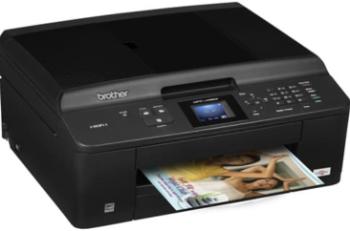
HP Officejet Enterprise Color X555dn Printer cartridges
OfficeJet Enterprise Color X555dn driver Downloads for Windows 32-bit – 64-bit and macOS..
Supported Windows Operating Systems
| Supported OS: Windows 10 32-bit, Windows 10 64-bit, Windows 8.1 32-bit, Windows 8.1 64-bit, Windows 8 32-bit, Windows 8 64-bit, Windows 7 32-bit, Windows 7 64-bit, Windows Vista 32-bit, Windows Vista 64-bit, Windows XP 32-bit | |||
| Filename | Size | ||
| PCL6 Full Drivers and Software for windows.exe | 80.40 MB | Download | |
| PCL6 Printer Driver for windows.exe | 76.76 MB | Download | |
| PCL6 Driver (no Installer) for windows.exe | 21.61 MB | Download | |
| PCL6 Universal Print Driver for windows 7 8 8.1 and 10 32 bit.exe | 17.16 MB | Download | |
| PCL6 Universal Print Driver for windows 7 8 8.1 and 10 64 bit.exe | 19.28 MB | Download | |
| PostScript Universal Print Driver for windows 7 8 8.1 and 10 32 bit.exe | 18.38 MB | Download | |
| PostScript Universal Print Driver for windows 7 8 8.1 and 10 64 bit.exe | 20.40 MB | Download | |
| USB connected PCL6 Universal Print Driver for windows 7 8 8.1 and 10 32 bit.exe | 17.27 MB | Download | |
| USB connected PCL6 Universal Print Driver for windows 7 8 8.1 and 10 64 bit.exe | 19.34 MB | Download | |
| USB connected PostScript Universal Print Driver for windows 7 8 8.1 and 10 32 bit.exe | 18.48 MB | Download | |
| USB connected PostScript Universal Print Driver for windows 7 8 8.1 and 10 64 bit.exe | 20.47 MB | Download | |
HP Officejet Enterprise Color X555dn driver Supported Mac OS.
| Supported OS: macOS Big Sur 11.x, Mac OS Catalina 10.15.x, Mac OS Mojave 10.14.x, macOS High Sierra 10.13.x, macOS Sierra 10.12.x, Mac OS X El Capitan 10.11.x, Mac OS X Yosemite 10.10.x, Mac OS X Mavericks 10.9.x, Mac OS X Mountain Lion 10.8.x, Mac OS X Lion 10.7.x, Mac OS X Snow Leopard 10.6.x | |||
| Filename | Size | ||
| HP Easy Start for Mac OS X 10.9 to 10.15 and 11.x.zip | 9.06 MB | Download | |
| Full Software Solution for Mac OS X 10.6 to 10.11.dmg | 127.19 MB | Download | |
HP OfficeJet Enterprise Color X555dn
The HP OfficeJet Enterprise Color X555dn Printer Overview
This single printer is a print-only device, specially made for business purposes. The printer has a moderately big size of 21 x 15.7 x 18.5 inches when the multipurpose tray is up. It weighs about 51 lbs. The HP Officejet Enterprise Color X555dn comes with a one-year onsite warranty and one-year technical support, chat, and email. This Enterprise Color X555dn device works with HP PCL 6 printing driver including the installer for both Windows and Mac Operating systems. The printer runs on HP PageWide Technology with pigmented inks.
hp officejet enterprise color x555dn printer cartridges
In its package box, you will find the device itself, four cartridges for printing black, cyan, magenta and yellow. The black cartridge can print approximately 7800 pages while each of the other three color cartridge prints about 3400 pages. The replacement cartridges are;
1. Hp 980 Cyan Original Ink cartridge (with around 6600 pages) and model number, D8J07A
2. Magenta Original Ink HP 980 Cartridge (with approximately 6600 pages) and model number, D8J08A
3. HP 980 Yellow Original Ink Cartridge (with around 6600 pages) and model number, D8J09A
4. Black Original Ink HP 980 Cartridge (with approximately 10,000 pages) and model number, D8J10A
HP OfficeJet Enterprise Color X555dn Connectivity
The standard connectivity procedure is through two Hi-speed USB 2.0 hosts, one Hi-speed USB 2.0 device. Also, one Gigabit Ethernet 10/100/1000T for networking, Other options are one Hardware Integration Pocket and two Internal USB hosts. The optional connectivity options include HP JetDirect ew2500 Wireless Print Server (J8021A), 802.11b/g/n wireless LAN. Also, HP JetDirect 2700w USB Wireless Print Server (J8026A), 802.11b/g wireless LAN and HP JetDirect 2800w NFC and Wireless Direct Accessory.
HP OfficeJet Enterprise Color X555dn Mobile Printing
The Printer supports mobile printing with applications such as HP ePrint, Apple AirPrint, and Mopria certification. You can also print through the Wireless Direct option which is faster and allows several users at once.
specifications
The printer yields its first page in black or color after ten secs after the command. The HP Officejet Enterprise Color X555dn black print resolution is up to 1200 x 1200 optimized dpi, especially when printing on an HP ColorLok paper. The color print resolution stands at 2400 x 1200 optimized dpi when printing from a computer on an HP Advanced Photo papers. The display is on a 4.3 inches touchscreen with Color Graphic Display (CGD). The input processor speed of this printer is 796 MHz. The print languages are HP PCL 6, HP PCL 5, HP postscript level 3 emulation and native PDF printing.
Paper Handling
The HP Officejet Enterprise Color X555dn monthly duty cycle is an incredible 80,000 pages. However, the manufacturer recommends that this volume should be between 1500 and 6000 pages. This feature depends on the images produced in the printings. The print speed is basically up to 42 ppm for A4 and 44 ppm for Letter. There are two standard paper trays, although it has an extra input tray.
HP OfficeJet Enterprise Color X555dn Power Specifications
The printer has a voltage range of 100 to 240 VAC at 50/60 Hz. When at full printing mode, it consumes 54 watts of power. When ready for print, it ran on 17 watts of power and 0.4 watts when plugged in but switched off. The device is Energy star certified to show its environmental suitability.
Limitations
1. There is no automatic paper sensor on this printer
2. The printer is a print-only device, despite its size
Download HP OfficeJet Enterprise Color X555dn driver from HP website
[Installation Instructions] How to Download / Installation procedure
Note: Do not connect the USB cable until requested by the installer. If you connect to the network, make sure the network cable is connected before running the installer
Windows
- Close all software programs running on your computer.
- Turn on the printer.
- Click the Download button on this page.
- Click the downloaded file. The files will be extracted and the installation process will automatically begin.
- Follow the instructions on the screen to continue and complete the installation.
Mac
- Download the file. For the location where the file is saved, check the computer settings.
- Double-click the downloaded file and mount it on the Disk Image.
- Then Double-click the mounted Disk Image.
- Double-click the packaged file in the folder. Installation starts automatically.
To install later, select Save in step 4 and choose a location on your hard disk. When ready to install, search and double-click the file. This will automatically extract and start the installation process. Follow the instructions on the screen to continue the installation.
if there is a link error please report to us via the Contact. Thank you for your participation in downloading the latest printer drivers download for your Printer so that your driver and software are always updated.