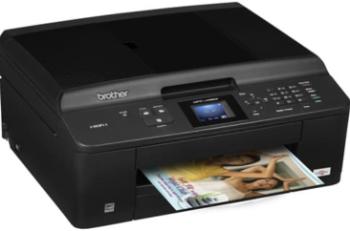
Printer Photosmart 2610xi Overview
HP Photosmart 2610xi is a different printer with a beautiful design for photo printing in both colored and black and white. The parts include a lid, input tray, print cartridge access door, control panel, color graphics display, and memory card slots. The components also include a PictBridge camera port that allows direct printing from a photo camera.
HP Photosmart 2610xi driver Supported Windows Operating Systems
| Supported OS: Windows 10 32-bit, Windows 10 64-bit, Windows 8.1 32-bit, Windows 8.1 64-bit, Windows 8 32-bit, Windows 8 64-bit, Windows 7 32-bit, Windows 7 64-bit, Windows Vista 32-bit, Windows Vista 64-bit, Windows XP 32-bit | |||
| Filename | Size | ||
| Full Feature Drivers and Software for windows 8 8.1 and 10.exe | 327.94 MB | Download | |
| Full Feature Drivers and Software for windows 7.exe | 362.68 MB | Download | |
| Full Feature Drivers and Software for windows Vista.exe | 163.28 MB | Download | |
| Full Feature Drivers and Software for windows XP 32 bit.exe | 428.80 MB | Download | |
| Basic Drivers and Software for windows XP 32 bit.exe | 59.54 MB | Download | |
HP Photosmart 2610xi driver Supported Mac Operating Systems
| Supported OS: Mac OS X Snow Leopard 10.6.x, Mac OS X Leopard 10.5.x | |||
| Filename | Size | ||
| Full Feature Drivers and Software for Mac OS X 10.6.dmg | 150.46 MB | Download | |
| Full Feature Drivers and Software for Mac OS X 10.5.dmg | 189.53 MB | Download | |
HP Photosmart 2610xi cartridges
HP 94 Black Original Ink Cartridge (~480 pages ), HP 96 Black Inkjet Print Cartridge (~860 pages ), HP 95 Tri-color Inkjet Print Cartridge (~330 pages ), HP 97 Tri-color Original Ink Cartridge (~560 pages ), HP 99 Photo Original Ink Cartridge (~130 pages ), HP 100 Gray Photo Original Ink Cartridge (~80 pages )
Printer Features
1. The printer has network connecting ports as either the Ethernet port and the Ethernet indicator lights. Another connectivity option is the standard Hi-speed USB 2.0 port through the rear USB port. Also, a wireless connection with 802.11b or g hardware and HP bt300 Bluetooth Wireless Printer Adapter.
2. There is a rear clean-out door for maintenance of the device.
3. There are two fax ports such as the 1-Line and 2-EXT options.
4. The compatible media sizes include Photo paper, Plain paper, postcards, hagaki, envelopes, index cards, transparent films, etc.
5. Input tray holds a total of about 150 sheets of plain paper while the output tray holds about 50 sheets.
6. The print resolution of the device is 1200 x 1200 dpi for both black and colored printing.
7. The print speed is dependent on the complexity of the document in the process as well as the printing mode. For instance, at the maximum dpi mode, the speed is 0.5 ppm on plain paper for both black and color.
8. This printer Photosmart 2610xi has a monthly duty cycle of 1250 printed pages (maximum), but HP recommends 500 pages on the average per month.
9. This printer also supports panoramic-size printing.
10. The printing method is through the drop-on-demand thermal inkjet technology with the language options of HP PCL level 3, PCL3 GUI or PCL 10.
Other Specifications
This device has physical dimensions of 21.21 x 46.4 x 37.2 cm (HWD) and a weight of 8.5 Kg. It supports the use of memory cards that can save up to 1000 different files at maximum.
Download HP Photosmart 2610xi All-in-One Printer driver from HP website
[Installation Instructions] How to Download / Installation procedure
Note: Do not connect the USB cable until requested by the installer. If you connect to the network, make sure the network cable is connected before running the installer
Windows
- Close all software programs running on your computer.
- Turn on the printer.
- Click the Download button on this page.
- Click the downloaded file. The files will be extracted and the installation process will automatically begin.
- Follow the instructions on the screen to continue and complete the installation.
Mac
- Download the file. For the location where the file is saved, check the computer settings.
- Double-click the downloaded file and mount it on the Disk Image.
- Then Double-click the mounted Disk Image.
- Double-click the packaged file in the folder. Installation starts automatically.
To install later, select Save in step 4 and choose a location on your hard disk. When ready to install, search and double-click the file. This will automatically extract and start the installation process. Follow the instructions on the screen to continue the installation.
if there is a link error please report to us via the Contact. Thank you for your participation in downloading the latest printer drivers download for your Printer so that your driver and software are always updated.