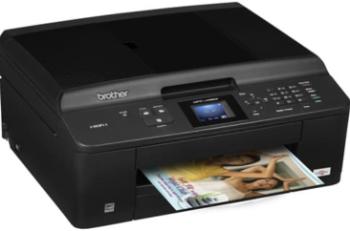
The HP Photosmart D7560 printing device is a photo printer with the unique ability to print directly on the surface. These surfaces are those that pertain to CDs and DVDs that are specially coated. It can also print from memory cards of various kinds. Finally, many of the printer functions are available on the control panel, and the computer does not have to be turned on. The USB is on the front panel while it also has a paper tray extender and the ink cartridge access door.
Supported Windows Operating Systems
| Supported OS: Windows 10 32-bit, Windows 10 64-bit, Windows 8.1 32-bit, Windows 8.1 64-bit, Windows 8 32-bit, Windows 8 64-bit, Windows 7 32-bit, Windows 7 64-bit, Windows Vista 32-bit, Windows Vista 64-bit, Windows XP 32-bit, Windows XP 64-bit | |||
| Filename | Size | ||
| Full Feature Drivers and Software for windows 8 8.1 and 10.exe | 87.52 MB | Download | |
| Full Feature Drivers and Software for windows 7.exe | 112.31 MB | Download | |
| Full Feature Drivers and Software for windows XP and Vista.exe | 123.44 MB | Download | |
| Basic Driver for Windows XP and Vista.exe | 39.86 MB | Download | |
HP Photosmart D7560 driver Supported Mac Operating Systems
| Supported OS: Mac OS X Snow Leopard 10.6.x, Mac OS X Leopard 10.5.x | |||
| Filename | Size | ||
| Full Feature Drivers and Software for Mac OS X 10.6.dmg | 139.84 MB | Download | |
| Studio Software for Mac OS X 10.5 and 10.6.dmg | 25.54 MB | Download | |
| Full Feature Drivers and Software for Mac OS X 10.5.dmg | 105.09 MB | Download | |
Photos printing works from PictBridge, DPOF file, or a UPnP (Universal Plug and Play) device, however, applies only to cases where the paper size settings are not in place. When using this device, the device supports faster browsing of the photo to the memory cards.
HP Photosmart D7560 cartridges
Black Ink HP 564 Cartridge (~250 pages ), HP 564 Cyan Ink Cartridge (~300 pages ), HP 564 Magenta Ink Cartridge (~300 pages ), HP 564 Yellow Original Ink Cartridge (~300 pages ), HP 564 Photo Original Ink Cartridge (~130 pages )
Printer Features
1. The printer has the energy save mode feature. This feature enters by default.
2. The device supports printing through a Bluetooth device by first touching the setup icon and select Bluetooth from the menu list.
3. Connecting to a computer requires a rear USB 2.0 Hi-speed port. You can also support this with a printer sharing feature when the printer applies to a computer on a network.
4. The following are the recommended paper types and many more;
a. HP Advanced Photo Paper or HP Photo Paper
b. HP Premium Plus Photo Paper
c. HP Premium Photo Paper
d. HP Premium Inkjet Transparency film
e. HP Bright White Inkjet Paper
5. HP Photosmart D7560 supports many paper types concerning standard sizes. These include index cards, envelopes, labels, legal, panorama, letterhead, photopapers, transparency films, etc.
6. Print resolution varies according to the type of paper in use and the selected print quality.
7. Printing on both sides of the paper with this printer is manual and not automatic.
Download HP Photosmart D7560 Printer driver from HP website
[Installation Instructions] How to Download / Installation procedure
Note: Do not connect the USB cable until requested by the installer. If you connect to the network, make sure the network cable is connected before running the installer
Windows
- Close all software programs running on your computer.
- Turn on the printer.
- Click the Download button on this page.
- Click the downloaded file. The files will be extracted and the installation process will automatically begin.
- Follow the instructions on the screen to continue and complete the installation.
Mac
- Download the file. For the location where the file is saved, check the computer settings.
- Double-click the downloaded file and mount it on the Disk Image.
- Then Double-click the mounted Disk Image.
- Double-click the packaged file in the folder. Installation starts automatically.
To install later, select Save in step 4 and choose a location on your hard disk. When ready to install, search and double-click the file. This will automatically extract and start the installation process. Follow the instructions on the screen to continue the installation.
if there is a link error please report to us via the Contact. Thank you for your participation in downloading the latest printer drivers download for your Printer so that your driver and software are always updated.