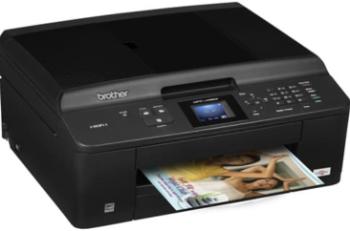
Canon PIXMA MG6851 model is a crucial member of the Canon PIXMA MG6800 printer series with tremendous properties. For a start, it has a height of 148 mm, a depth of 369 mm, and a width of 455mm. This printer’s net weight is also about 6.4 kg, which is perfect for its portable use in all kinds of environments. In terms of the noise level, when printing, the noise level of the machine is about 42.5 dB (A).
PIXMA MG6851 driver Downloads for Windows 32-bit – 64-bit and macOS..
Supported Ink Catridges
Ink Catridge Pigment Black PGI-570PGBK, CLI-571BK Ink Catridge Black, Ink Catridge Yellow CLI-571Y, Cyan Ink Catridge CLI-571C, Magenta Ink Catridge CLI-571M
Canon PIXMA MG6851 driver Supported Windows Operating Systems
| Supported OS: Windows 10 32-bit, Windows 10 64-bit, Windows 8.1 32-bit, Windows 8.1 64-bit, Windows 8 32-bit, Windows 8 64-bit, Windows 7 32-bit, Windows 7 64-bit, Windows Vista 32-bit, Windows Vista 64-bit, Windows XP 32-bit, Windows XP 64-bit | |||
| Filename | Size | ||
| Full Driver and Software Package for Windows.exe | 48.18 MB | Download | |
| MP Drivers for Windows.exe | 37.57 MB | Download | |
| XPS Printer Driver for Windows Vista 7 8 8.1 10.exe | 19.32 MB | Download | |
Canon PIXMA MG6851 driver Supported Mac OS.
| Supported OS: Mac OS Catalina 10.15.x, macOS Mojave 10.14.x, macOS High Sierra 10.13.x, macOS Sierra 10.12.x, Mac OS X El Capitan 10.11.x, Mac OS X Yosemite 10.10.x, Mac OS X Mavericks 10.9.x, Mac OS X Mountain Lion 10.8.x, Mac OS X Lion 10.7.x | |||
| Filename | Size | ||
| CUPS Printer Driver for MAC OS X 10.7 to 10.15.dmg | 16.30 MB | Download | |
| Full Driver and Software Package for MAC OS X 10.7 to 10.9.dmg | 9.31 MB | Download | |
| ICA Driver for MAC OS X 10.7 to 10.15.dmg | 2.21 MB | Download | |
Canon PIXMA MG6851 driver Supported Linux Operating Systems
Linux (32-bit), Linux (64-bit)
| Supported OS: Debian os, SUSE Linux os, Linux Mint os, Boss os, Red Hat Enterprise Linux os, cent os, Fedora os, Ubuntu os | |||
| Filename | Size | ||
| IJ Printer Driver for Linux – debian Packagearchive.tar.gz | 614.03 kB | Download | |
| IJ Printer Driver for Linux – rpm Packagearchive.tar.gz | 277.34 kB | Download | |
| IJ Printer Driver for Linux – Source file.tar.gz | 455.57 kB | Download | |
| ScanGear MP for Linux – debian Packagearchive.tar.gz | 236.15 kB | Download | |
| ScanGear MP for Linux – rpm Packagearchive.tar.gz | 212.62 kB | Download | |
| ScanGear MP for Linux – Source file.tar.gz | 204.27 kB | Download | |
Specifications
The recommended temperature in a typical operating environment is between 15 and 300C. Besides, the relative humidity is between 10 and 80% with no dew condensation. Whereas, the power usage is between 100 and 240 volts of power at a frequency of 50/60 Hz. When considering the power consumption, the printer at the ‘off’ mode uses about 0.2 watts of power. Whereas, at the standby mode, the power consumption is approximately 0.8 watts with USB connection. The printer takes about 7 minutes for the machine when idle to enter into the standby mode.
The supported operating system versions include Windows OS 10, 8.1, 8, 7, 7 SP1, Vista SP2, and XP. On the other hand, Apple systems with Mac OS X v10.7.5 to Mac OS X v10.10 are also compatible. The two primary OS for mobile systems includes iOS and Android. Some of the notable interface options include the PIXMA cloud link, Canon PRINT Inkjet/SELPHY app, and Canon Print Service Plugin. But the mobile printing features include Google Cloud Print, Apple AirPrint, Wi-Fi direct print, Access Point Mode, and WLAN PictBridge.
The compatible memory card types include SD card, SDHC card, Memory Stick Duo or Pro Duo, and mini SDHC card. Users can connect with this printer through the standard USB 2.0 B port, Wi-Fi IEEE802.11b/g/n, and Wi-Fi Security. Download Canon PIXMA MG6851 Printer driver from Canon Website
[Installation Instructions] How to Download / Installation procedure
Note: Do not connect the USB cable until requested by the installer. If you connect to the network, make sure the network cable is connected before running the installer
Windows
- Close all software programs running on your computer.
- Turn on the printer.
- Click the Download button on this page.
- Click the downloaded file. The files will be extracted and the installation process will automatically begin.
- Follow the instructions on the screen to continue and complete the installation.
Mac
- Download the file. For the location where the file is saved, check the computer settings.
- Double-click the downloaded file and mount it on the Disk Image.
- Then Double-click the mounted Disk Image.
- Double-click the packaged file in the folder. Installation starts automatically.
To install later, select Save in step 4 and choose a location on your hard disk. When ready to install, search and double-click the file. This will automatically extract and start the installation process. Follow the instructions on the screen to continue the installation.
if there is a link error please report to us via the Contact. Thank you for your participation in downloading the latest printer drivers download for your Printer so that your driver and software are always updated.