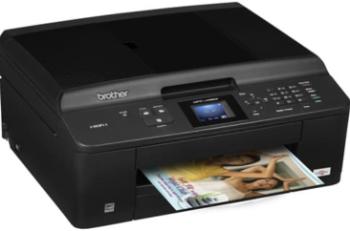
Canon PIXMA MP499 has an average print speed of 8.8 images per minute (ipm) for black printing at ESAT mode. When printing in color in the same method, the rate is about 5.0 ipm. But borderless printing at the 4 x 6 photo size is approximately 41 seconds per page. Whereas, the number of nozzles is up to 1472 in total comprising of 320 nozzles for black. On the other hand, color nozzles are up to 1152 in total.
Canon PIXMA MP499 driver Downloads for Windows 32-bit – 64-bit and macOS..
Supported Ink Catridges
Colors Cyan, Yellow, Magenta Ink Catridges CL-211, Pigment Black Ink Catridge PG-210
Canon PIXMA MP499 driver Supported Windows Operating Systems
| Supported OS: Windows 10 32-bit, Windows 10 64-bit, Windows 8.1 32-bit, Windows 8.1 64-bit, Windows 8 32-bit, Windows 8 64-bit, Windows 7 32-bit, Windows 7 64-bit, Windows Vista 32-bit, Windows Vista 64-bit, Windows XP 32-bit, Windows XP 64-bit | |||
| Filename | Size | ||
| MP Driver for Windows.exe | 16.74 MB | Download | |
| XPS Printer Driver for Windows Vista 7 8 8.1 10.exe | 14.42 MB | Download | |
Canon PIXMA MP499 driver Supported Mac OS.
| Supported OS: macOS Sierra 10.12.x, Mac OS X El Capitan 10.11.x, Mac OS X Yosemite 10.10.x, Mac OS X Mavericks 10.9.x, Mac OS X Mountain Lion 10.8.x, Mac OS X Lion 10.7.x, Mac OS X Snow Leopard 10.6.x, Mac OS X Leopard 10.5.x | |||
| Filename | Size | ||
| CUPS Printer Driver for MAC OS X 10.7 to 10.12.dmg | 13.78 MB | Download | |
| CUPS Printer Driver for MAC OS X 10.5 and 10.6.dmg | 16.51 MB | Download | |
| Printer Driver for MAC OS X 10.5.dmg | 6.14 MB | Download | |
| Scanner Driver for MAC OS X 10.12.dmg | 12.58 MB | Download | |
| Scanner Driver for MAC OS X 10.5 to 10.11.dmg | 12.68 MB | Download | |
| ICA Driver for MAC OS X 10.7 to 10.12.dmg | 7.05 MB | Download | |
| ICA Driver for MAC OS X 10.6.dmg | 8.60 MB | Download | |
| Mini Master Setup for MAC OS X 10.6 to 10.8.dmg | 36.18 MB | Download | |
Specifications
Picolitre size for color printing is about 2 and 5, while the maximum resolution varies for monochrome and color printing. Color printing produces a quality of up to 4800 x 1200 dots per inch (dpi) at the best performance. On the other hand, black resolution quality is up to 600 x 600 dpi. It is also compatible with standard paper sizes such as photo sizes, legal, letter, and US envelopes. There is an auto sheet feeder of up to 100 sheets of plain paper.
In terms of the paper types, the compatible ones include plain paper, high-resolution paper, and super high gloss. Others are Photo paper pro platinum, photo paper plus glossy II, photo paper glossy, photo paper plus semi-gloss, and matte photo paper. Some unique specifications of the machine include auto photo fix II, borderless printing, calendar print, photo printing, and document printing. Others include smartphone photo printing and full HD movie print.
The output tray capacity of the machine includes 100 sheets of plain paper with an auto sheet feeder. While copying, the rate of copying is about 26 seconds per page for working on color documents. Besides, the reduction limit of the output copy is about 25% of the document size. Whereas, the enlarged copy will reach up to 400% of the original scope of the document. Download Canon PIXMA MP499 Printer driver from Canon Website
[Installation Instructions] How to Download / Installation procedure
Note: Do not connect the USB cable until requested by the installer. If you connect to the network, make sure the network cable is connected before running the installer
Windows
- Close all software programs running on your computer.
- Turn on the printer.
- Click the Download button on this page.
- Click the downloaded file. The files will be extracted and the installation process will automatically begin.
- Follow the instructions on the screen to continue and complete the installation.
Mac
- Download the file. For the location where the file is saved, check the computer settings.
- Double-click the downloaded file and mount it on the Disk Image.
- Then Double-click the mounted Disk Image.
- Double-click the packaged file in the folder. Installation starts automatically.
To install later, select Save in step 4 and choose a location on your hard disk. When ready to install, search and double-click the file. This will automatically extract and start the installation process. Follow the instructions on the screen to continue the installation.
if there is a link error please report to us via the Contact. Thank you for your participation in downloading the latest printer drivers download for your Printer so that your driver and software are always updated.