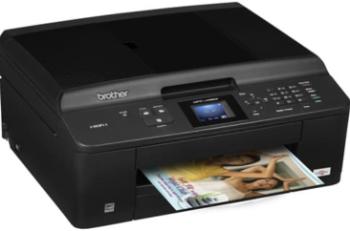
The Canon PIXMA MX894 printer model is a multifunction printer that can produce top quality output for the user. Some of the basic features include printing, copying, faxing, and scanning with some mobile phone direct printing. The display component is a color TFT screen, which measures up to 7.5 cm in the diagonal size. It also has a dual function control panel, which makes it exceptionally useful to the printer owner.
Canon PIXMA MX894 driver Downloads for Windows 32-bit – 64-bit and macOS..
Canon PIXMA MX894 driver Supported Windows Operating Systems
| Supported OS: Windows 10 32-bit, Windows 10 64-bit, Windows 8.1 32-bit, Windows 8.1 64-bit, Windows 8 32-bit, Windows 8 64-bit, Windows 7 32-bit, Windows 7 64-bit, Windows Vista 32-bit, Windows Vista 64-bit, Windows XP 32-bit, Windows XP 64-bit | |||
| Filename | Size | ||
| MP Driver for Windows.exe | 28.98 MB | Download | |
| XPS Printer Driver for Windows Vista 7 8 8.1 10.exe | 22.65 MB | Download | |
| Mini Master Setup for Windows XP Vista 7 8 8.1.exe | 36.59 MB | Download | |
Canon PIXMA MX894 driver Supported Mac OS.
| Supported OS: macOS High Sierra 10.13.x, macOS Sierra 10.12.x, Mac OS X El Capitan 10.11.x, Mac OS X Yosemite 10.10.x, Mac OS X Mavericks 10.9.x, Mac OS X Mountain Lion 10.8.x, Mac OS X Lion 10.7.x, Mac OS X Snow Leopard 10.6.x, Mac OS X Leopard 10.5.x | |||
| Filename | Size | ||
| CUPS Printer Driver for MAC OS X 10.7 to 10.13.dmg | 14.95 MB | Download | |
| CUPS Printer Driver for MAC OS X 10.5 and 10.6.dmg | 17.67 MB | Download | |
| Scanner Driver for MAC OS X 10.5 to 10.13.dmg | 12.86 MB | Download | |
| ICA Driver for MAC OS X 10.7 to 10.13.dmg | 7.05 MB | Download | |
| ICA Driver for MAC OS X 10.6.dmg | 8.60 MB | Download | |
| Mini Master Setup for MAC OS X 10.5 to 10.8.dmg | 48.57 MB | Download | |
Canon PIXMA MX894 driver Supported Linux Operating Systems
Linux (32-bit), Linux (64-bit)
| Supported OS: Debian os, SUSE Linux os, Linux Mint os, Boss os, Red Hat Enterprise Linux os, cent os, Fedora os, Ubuntu os | |||
| Filename | Size | ||
| IJ Printer Driver for Linux – Source file.tar.gz | 8.09 MB | Download | |
| IJ Printer Driver for Linux – debian Packagearchive.tar.gz | 3.58 MB | Download | |
| IJ Printer Driver for Linux – rpm Packagearchive.tar.gz | 3.72 MB | Download | |
| ScanGear MP for Linux – Source file.tar.gz | 3.42 MB | Download | |
| ScanGear MP for Linux – debian Packagearchive.tar.gz | 1.29 MB | Download | |
| ScanGear MP for Linux – rpm Packagearchive.tar.gz | 1.32 MB | Download | |
Specifications
The machine has an automatic document feeder (ADF), which can accommodate up to 35 pages of plain paper. This ADF feature supports automatic duplex printing can print on both sides of the page. Canon PIXMA MX894 model has a width of 491 mm, a depth of 448 mm, while the height is about 218 mm. The supported print languages include Japanese, English, German, Italian, Slovenian, Czech, Swedish, Norwegian, Spanish, Hungarian, Greek, Korean, Russian, and Dutch.
The Canon PIXMA MX894 printer model’s weight is about 11.7 kg, which matches the printer use. It produces an acoustic noise level of 45.5 dB(A) and prints according to the ISO/JIS-SCID N2 pattern on photo paper. In a typical printing environment, the acceptable temperature range is between 5 and 350C. On the other hand, the relative humidity of the environment should also be between 10 and 90% with no condensation.
Copying with this device is through the ADF, while the copy speed is approximately 14 seconds per page. Then, copying in the simplex mode, the approximate rate is 7.0 images per minute (ipm). It also supports a multicopy feature of up to 1 to 99 copies from a single original document. In terms of the zoom level, it can reduce the image size to up to 25% or enlarge up to 400% of the original scope of the document. Download Canon PIXMA MX894 Printer driver from Canon Website
[Installation Instructions] How to Download / Installation procedure
Note: Do not connect the USB cable until requested by the installer. If you connect to the network, make sure the network cable is connected before running the installer
Windows
- Close all software programs running on your computer.
- Turn on the printer.
- Click the Download button on this page.
- Click the downloaded file. The files will be extracted and the installation process will automatically begin.
- Follow the instructions on the screen to continue and complete the installation.
Mac
- Download the file. For the location where the file is saved, check the computer settings.
- Double-click the downloaded file and mount it on the Disk Image.
- Then Double-click the mounted Disk Image.
- Double-click the packaged file in the folder. Installation starts automatically.
To install later, select Save in step 4 and choose a location on your hard disk. When ready to install, search and double-click the file. This will automatically extract and start the installation process. Follow the instructions on the screen to continue the installation.
if there is a link error please report to us via the Contact. Thank you for your participation in downloading the latest printer drivers download for your Printer so that your driver and software are always updated.